A pocket radar to see and be seen
skyBlip Go transmits your position in ADS-L and shows ADS-L and FLARM traffic.
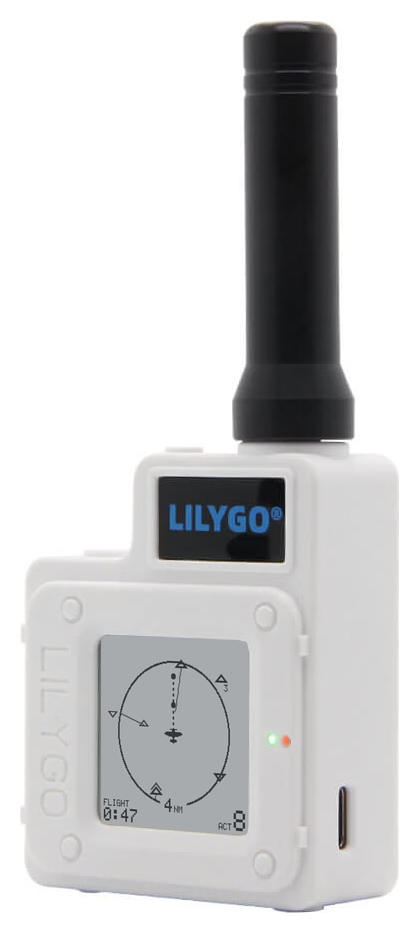
Read the traffic at a glance
Your track at the top, traffic around you
A symbol at the top right tells you to look ahead and to your right. The point tells you whether the aircraft is above or below you. A diamond means it’s roughly at your level. The line shows where it will be in a minute if it keeps flying the same track. Choose a radar circle of 1, 2, 4 or 8 nautical miles (NM).
Read the radar (From the guide "Radar and traffic")
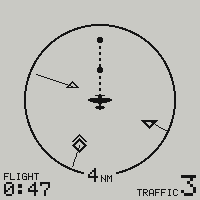

Above you

At your level

Below you
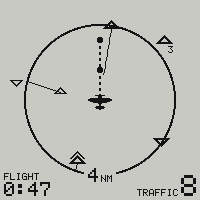
Traffic stays visible beyond the circle
In PLOT ALL, the default setting, the edge of the circle doesn’t cut off traffic. Go puts traffic it receives beyond the circle in a band around the outside, in the direction it’s coming from. See where it’s coming from without changing the scale. If you want positions drawn to scale, choose PLOT TO SCALE.
Compare the two radar modes (From the guide "Every screen")
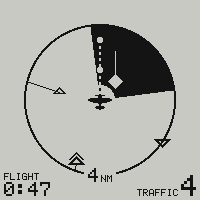
An alert tells you where to look
When traffic triggers an alert, Go returns to the radar. A quarter of the screen flashes in the direction of the traffic. Look that way. Go doesn’t tell you to climb or descend.
Read an alert (From the guide "Radar and traffic")
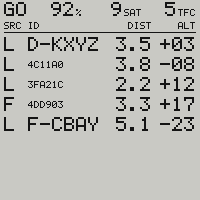
Nearby: who’s there and how far away?
The list puts alerts first, then aircraft near your altitude. Each line shows the source, the callsign if received, the horizontal distance and the difference in altitude if known.
Read the Nearby list (From the guide "Radar and traffic")
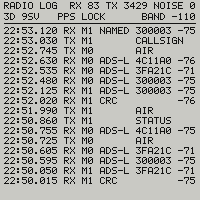
Your position, every second in flight
In flight, Go transmits your position in ADS-L every second. It also sends your callsign in a separate message if you’ve set one. Pilots whose equipment receives those messages can see and identify you on their screen.
Where the second goes (From the guide "The radio second")
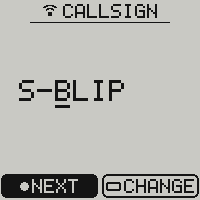
Set your callsign on Go or in Briefing
Change your aircraft type or callsign in Go’s menu or over Bluetooth in Briefing.
Enter your callsign (From the guide "Controls and menus")
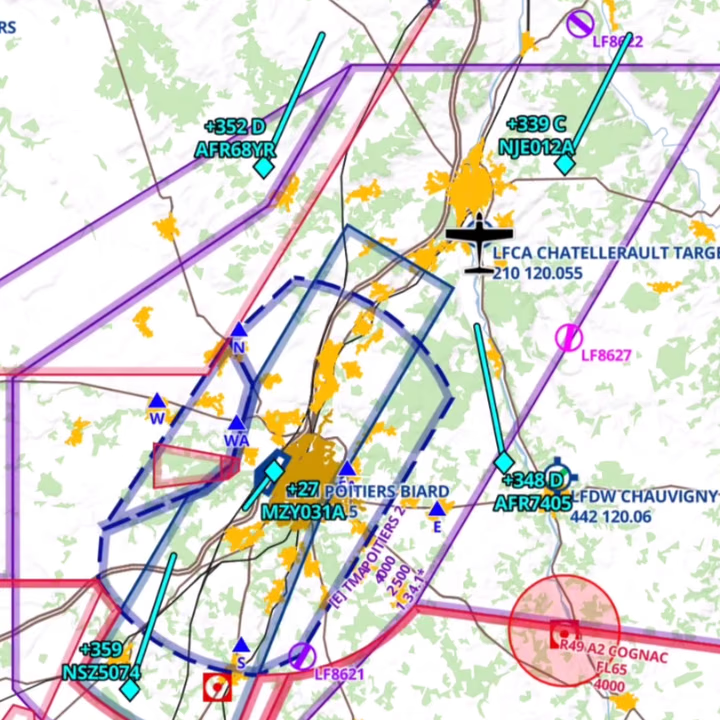
The same traffic in your apps
Choose your Go in SDVFR Next, SkyDemon or ForeFlight. Go sends traffic over Bluetooth to three devices at once. Your tablet, your phone and your passenger’s phone can all receive the same traffic.
Connect your app (From the guide "Phone and firmware")
Six dials on Go, a g-meter on Go+
Readings from the GPS and barometer
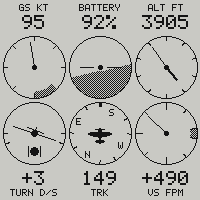
The six dials show ground speed, horizon, altitude, turn, track and vertical speed. Treat these readings as a guide. They don’t replace your flight instruments.
Read the six dials (From the guide "Instruments")
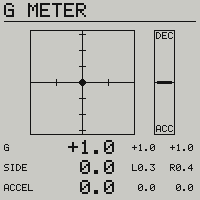
The Go+ g-meter keeps the highest and lowest readings
The g-meter shows the loads measured by Go+’s accelerometer. Read the current load and see the extremes reached during your flight. Go+ also adds sound and vibration to the on-screen alert.
Read the g-meter (From the guide "Instruments")
Try the radar, then choose your hardware
Go and Go+ share the same radar. Pair either with a Bravo to also see aircraft that transmit their position in ADS-B.
Go is an uncertified aid to visual lookout. It doesn’t replace FLARM equipment or a transponder required for your flight.